
How to Mass Upload Offline Donations Using a CSV File
You can now upload multiple offline donations at once using our CSV upload tool. This feature is helpful when you have collected several cash or cheque donations offline and want to add them quickly to your fundraiser in CrowdChange.
How to Access the CSV Upload Tool
Go to your fundraiser on your CrowdChange site and Log In.
Click Manage fundraiser in the top-right corner.
In the fundraiser dashboard menu, select Offline donations.
Click the Upload .csv file button.
A modal will appear where you can download the CSV template and upload your completed file.
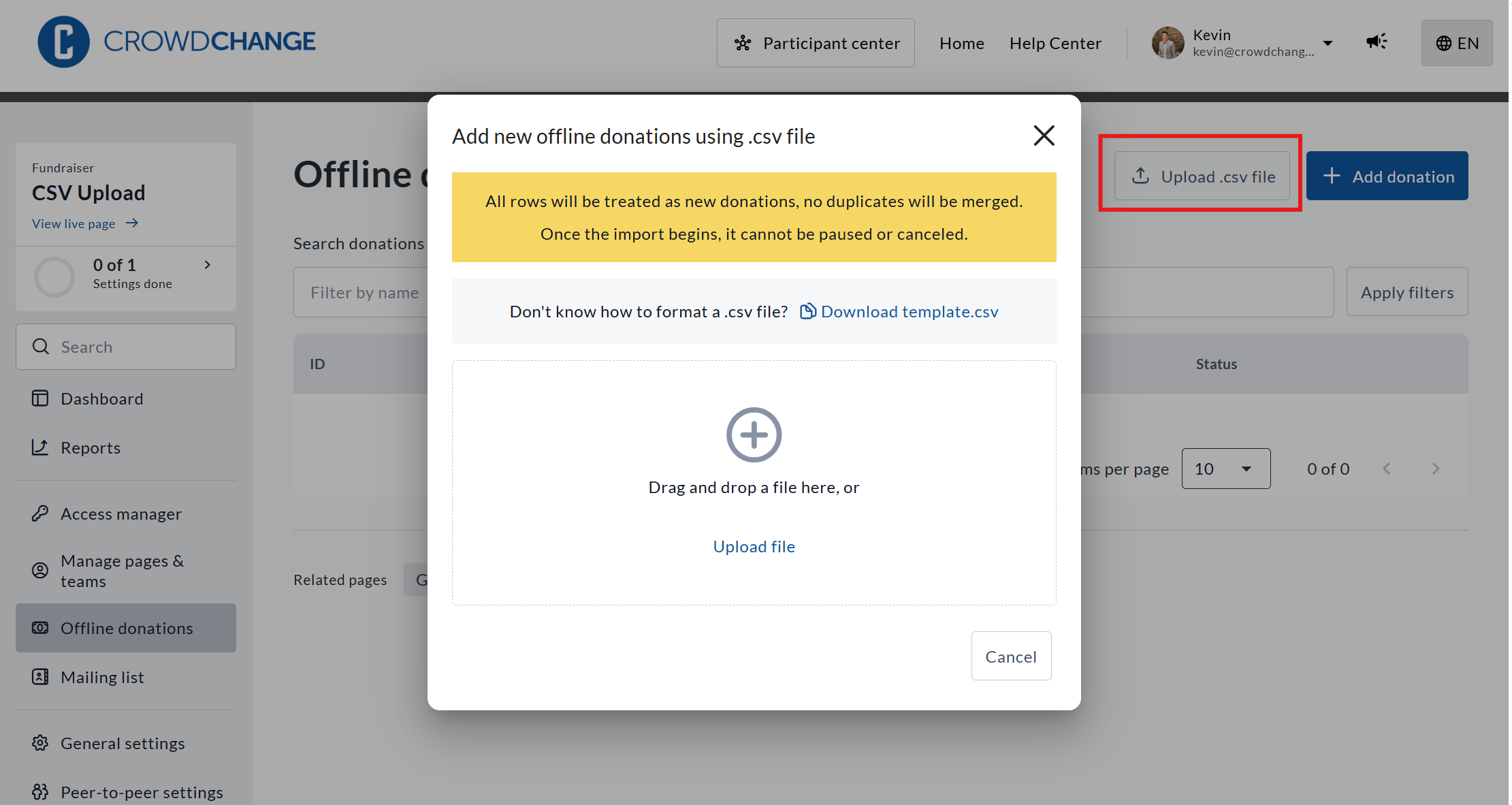
A view of the .csv upload tool feature, with the Upload .csv file button highlighted
Step 1: Download the CSV Template
Before uploading, download the required template and fill it in. You can download the template by clicking Download template.csv in the above-pictured modal.
Do not rename or change any column headers, as this may prevent your file from being processed.

Important: All rows in the CSV will be treated as new donations. Duplicate entries will not be merged. Once the upload begins, it cannot be paused or cancelled.
Step 2: Upload Your File
Open the Upload .csv file modal.
Drag and drop your completed CSV into the upload area, or click Upload file to select it.
Review the summary on screen.
Click Import to complete the upload.
What Happens After Upload
Donation Status
All uploaded offline donations will be created with the status Pending by default.
Pending offline donations:
Do appear in the Admin-level donations report, but their status will be indicated as Pending.
Do appear as pending contributions on the fundraiser dashboard for admins and hosts.
To confirm an offline donation:
Open the donation entry from Offline donations.
Change the status to Received.
Tax Receipts
Tax receipts are not automatically issued for offline donations uploaded via CSV.
If your organization issues tax receipts:
Receipts must be issued manually, after upload, one donation at a time.
Tax receipts can only be issued on offline donations that are marked as Received.
This can be done from the donation’s details page or through the Tax Receipts Report, depending on your site’s configuration.