
How to Upload a List of Teams or Personal Pages Using a CSV File
CrowdChange allows you to upload multiple Team or Personal Fundraising Pages in bulk using a simple .CSV file. This feature is available within the Manage Pages and Teams section of your fundraiser dashboard.
Step 1: Go to Manage Pages and Teams
Log in to your CrowdChange site.
Navigate to your fundraiser and click Manage Fundraiser.
From the left sidebar, click Manage pages and teams.
You will see two tabs at the top of this screen (see below):
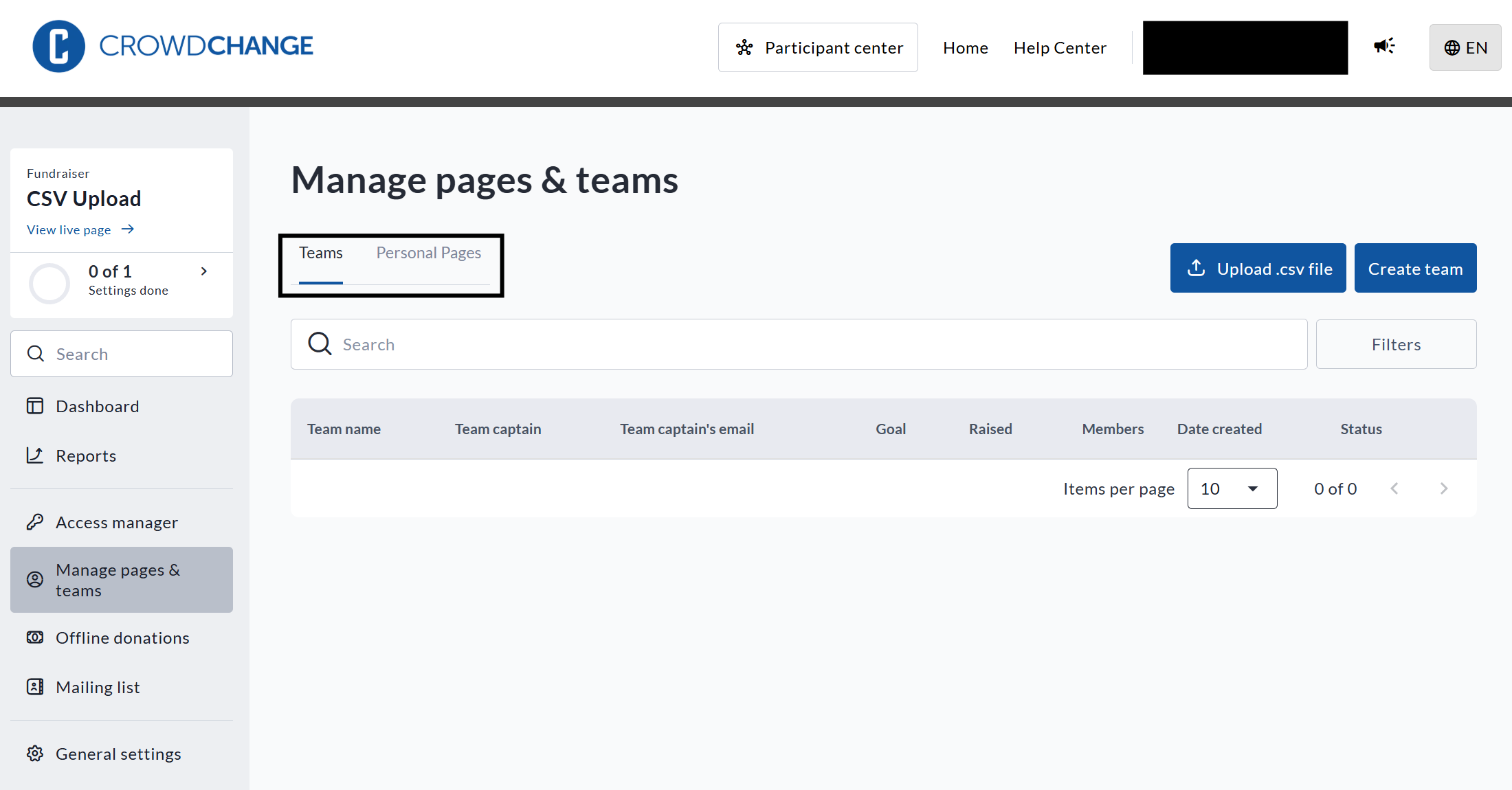
View of the Manage pages & teams feature
Teams
Personal Pages

Be sure to click into the correct tab before uploading, depending on whether you are uploading team pages or personal pages.
Step 2: Download and Fill Out the Correct Template
Click the Upload .csv file button to initiate this process. To download the template, click Download template.csv (see below).
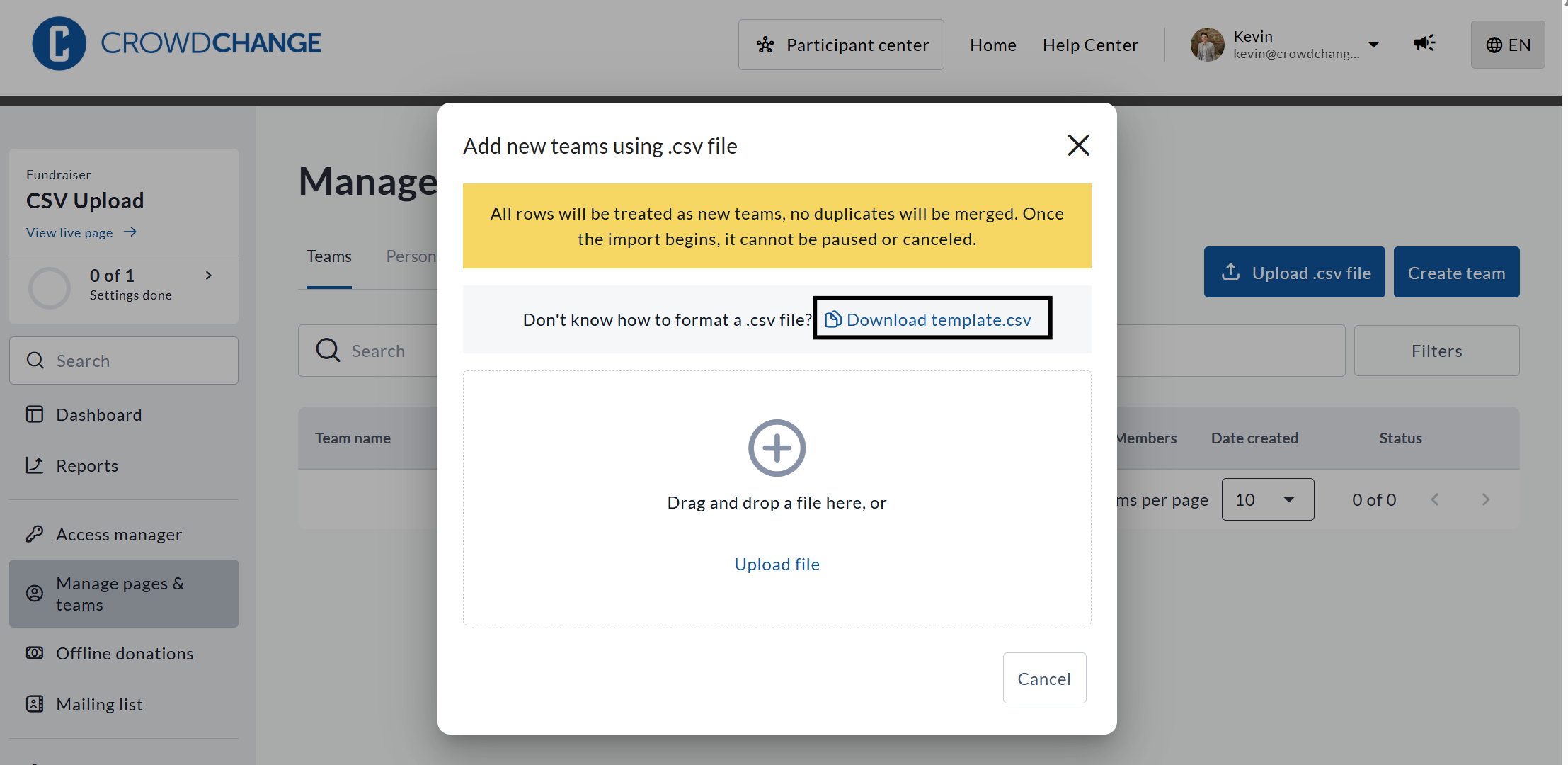
View of how to download the .csv template for Team fundraising pages
Ensure that the column headers are not changed, and that all required fields are filled out. For example:
For Personal Pages: Email, First Name, Last Name, Page Name, Fundraising Goal (optional depending on Fundraiser settings), and Team ID (optional if not linked to a team).
For Teams: Email, First Name, Last Name, Page Name, Fundraising Goal (optional depending on Fundraiser settings).
Step 3: Upload Your CSV
Click Upload .csv file in the top right.
Drag and drop your completed CSV or browse to select it.
Review the summary before confirming the upload.
Important: All rows are treated as new entries. Duplicates will not be merged, and the import cannot be undone once it begins.
Finding the Team ID (For Personal Page Uploads Only)
If you are uploading personal pages and want them linked to teams, you must include the Team ID.
You can find the Team ID in two places:
Admin Teams Report: This report shows a list of all teams and their unique IDs.
Team Page URL: Visit the team page and copy the numeric value at the end of the URL.