
The Community Feed is a social engagement feature that allows fundraiser owners, team captains, and personal page owners to share updates, celebrate achievements, and engage with supporters directly on their fundraising pages.
Community Feed helps keep supporters informed throughout a campaign by making it easy to post updates, share photos and videos, celebrate fundraising milestones, and encourage ongoing participation.
Creating a Post
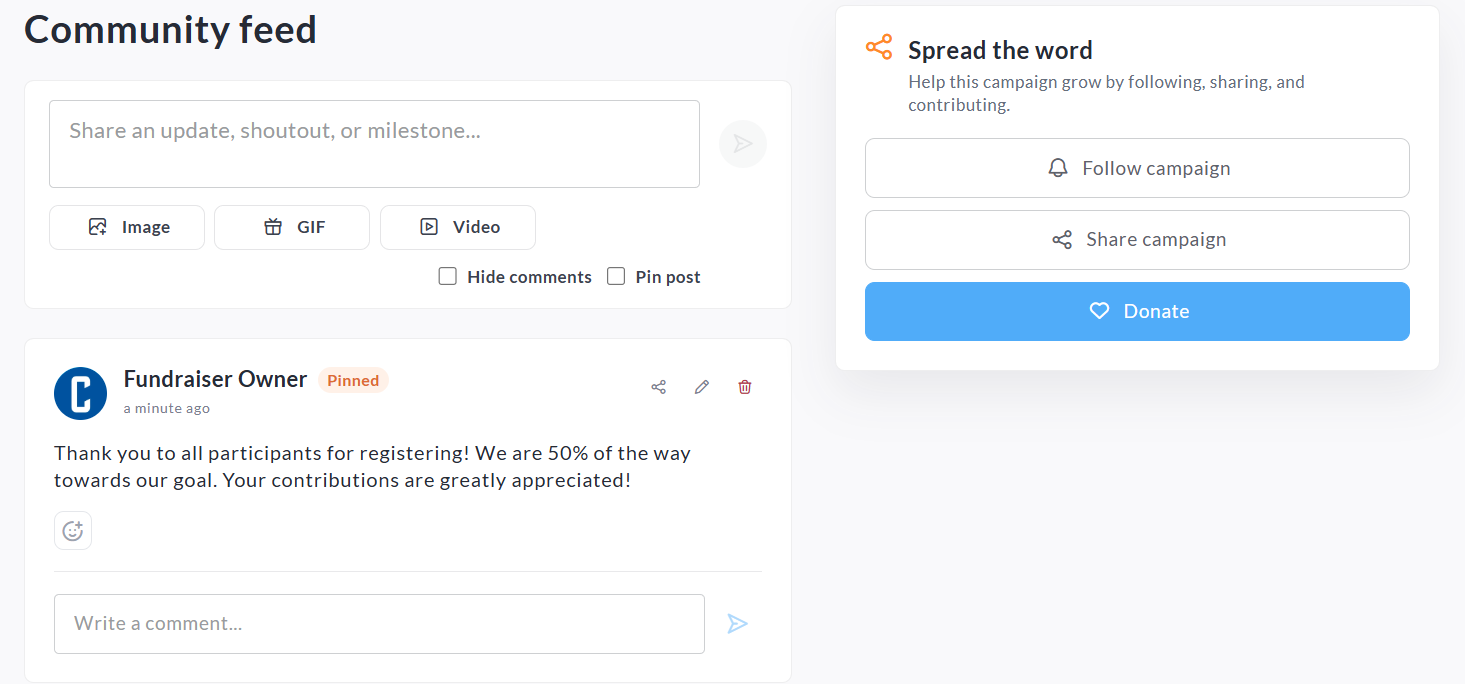
Page owners can create and publish updates directly from the Community Feed section.
To create a post:
-
Navigate to your Fundraiser, Team, or Personal Fundraising Page.
-
Locate the Community Feed block.
-
Enter your message in the text field.
-
Optionally add media or a milestone.
-
Select any additional options:
-
Hide comments
-
Pin post
-
-
Click Post.
Adding Images, GIFs, and Videos
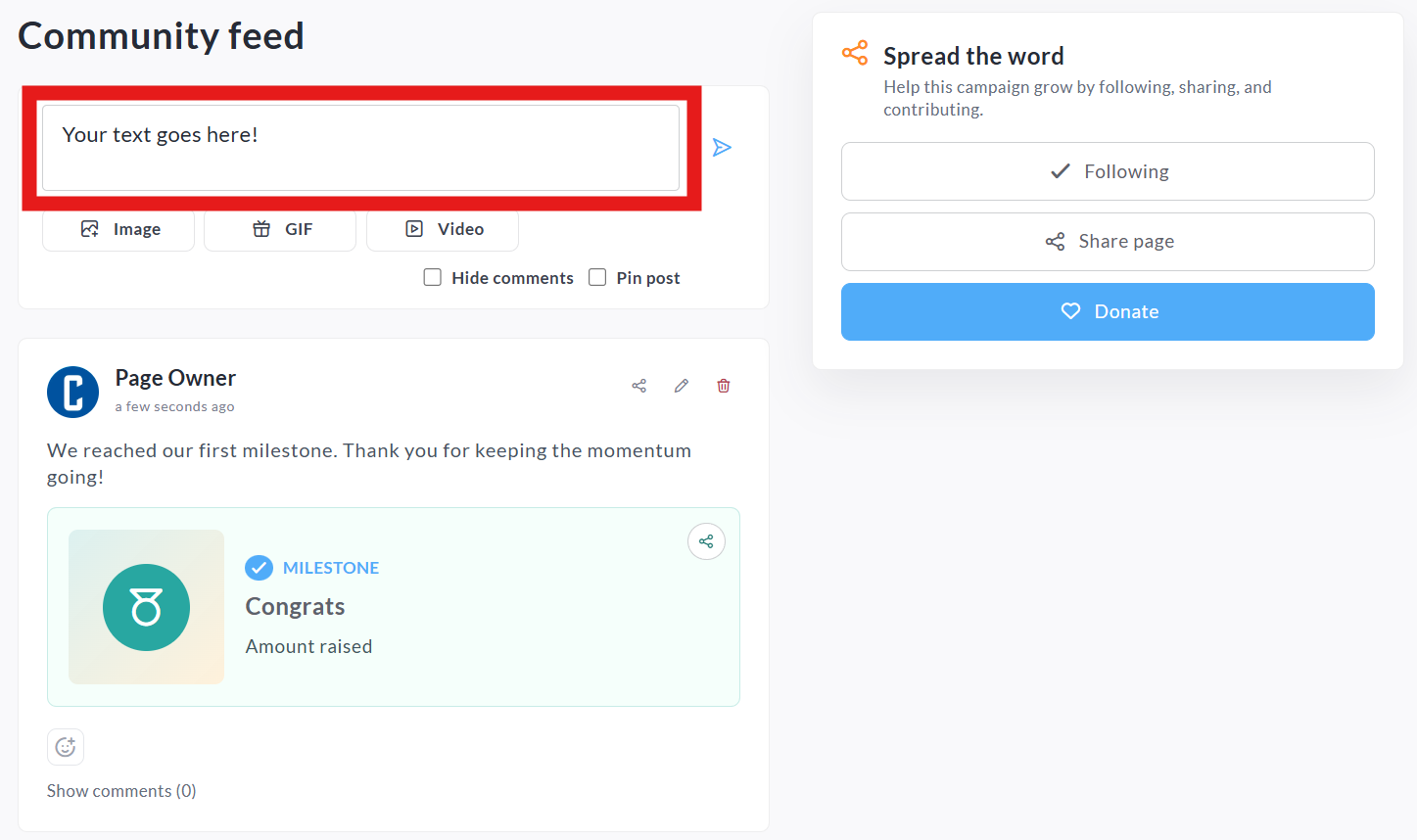
Community Feed posts can include media to make updates more engaging and visually appealing.
Depending on your site's configuration, page owners may be able to add:
Images
Upload photos from your device to share event updates, fundraising progress, thank-you messages, or campaign highlights.
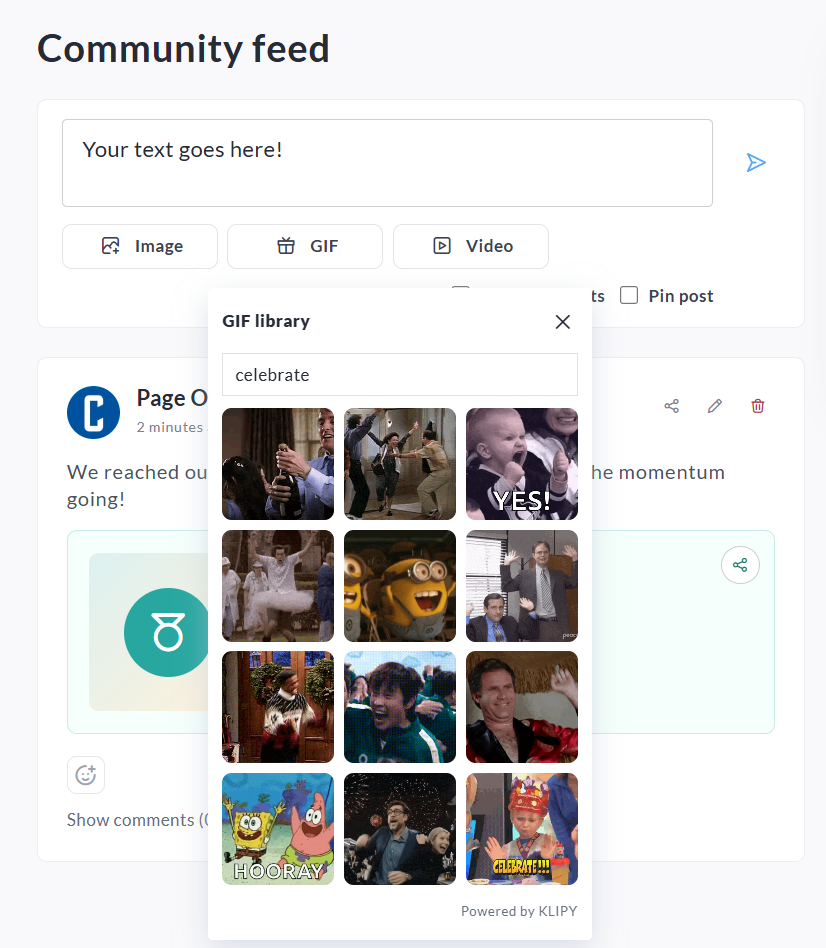
GIFs
Add GIFs to celebrate milestones, thank donors, or create fun and engaging updates.
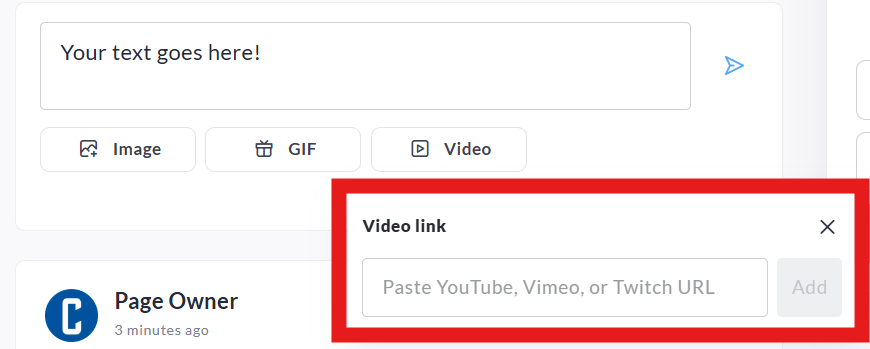
Videos
Share video content to tell your story, provide campaign updates, or thank supporters.
Milestone Posts
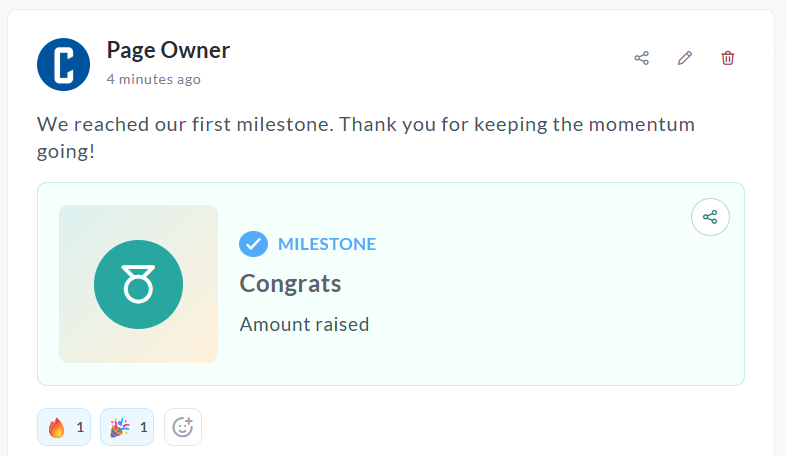
Community Feed includes milestone-sharing functionality that helps page owners celebrate fundraising achievements.
When a page reaches certain fundraising milestones, CrowdChange may display a suggested post that can be shared with a single click.
Examples include:
-
Reaching a fundraising amount goal
-
Reaching a donation count milestone
-
Earning an Activity Tracker badge
Page owners can choose to:
-
Share the milestone immediately
-
Dismiss the suggestion
If dismissed, the same milestone prompt will not continue to appear repeatedly.
Following a Page
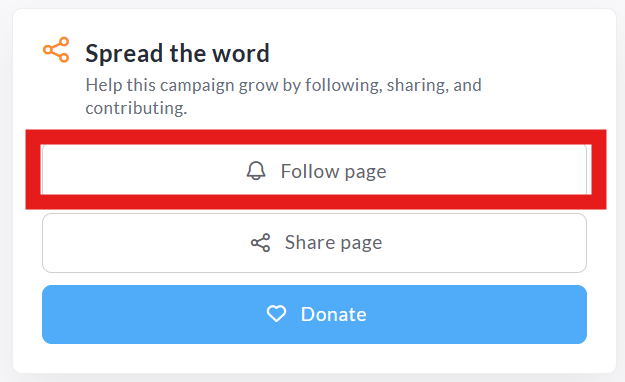
Supporters can follow Fundraiser, Team, and Personal Pages to stay informed about future updates.
Registered Users
Logged-in users can click Follow Page and automatically receive Community Feed notifications using the email address associated with their account.
Anonymous Visitors
Visitors who do not have a CrowdChange account can subscribe to updates using their email address or SMS notifications (if enabled).
Notifications
When a new Community Feed post is published:
-
Followers receive a notification about the update.
-
Email notifications include a direct link back to the page.
-
Followers can unsubscribe at any time.
-
Users can manage their notification preferences within their CrowdChange profile settings.
Comments and Reactions
Community Feed is designed to encourage supporter engagement.
Reactions
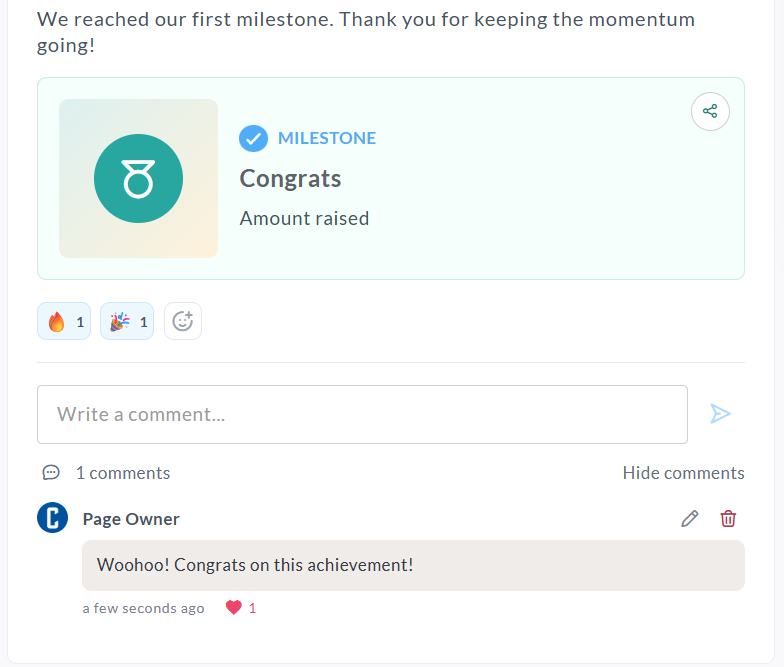
Supporters can react to posts and comments.
Anonymous visitors may react without creating an account.
Comments
Supporters can comment on Community Feed posts to show encouragement and interact with page owners.
Please note:
-
Commenting requires a registered CrowdChange account.
-
Comments are subject to spam and profanity filtering.
-
Site administrators may disable comments entirely.
Pinning Posts
Page owners can pin important posts to keep them visible at the top of the Community Feed.
Pinned posts are ideal for:
-
Campaign announcements
-
Event reminders
-
Fundraising challenges
-
Sponsor acknowledgements
-
Thank-you messages
To pin a post, select Pin Post before publishing.
Community Feed Configuration (Admins)
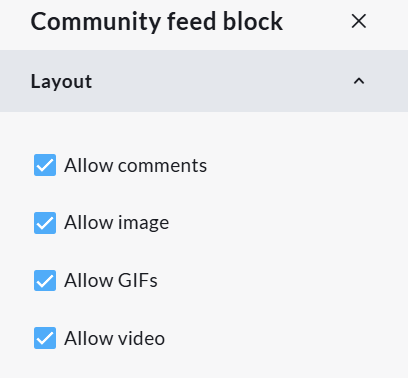
Administrators can customize the appearance and functionality of the Community Feed block through the Fundraiser Design Editor.
Available Configuration Options
Appearance Settings
-
Block title
-
Title alignment
-
Background colour
-
Accent colour
-
Background image
-
Mobile background image
-
Background opacity
-
Title text colour
Content Controls
-
Allow comments
-
Allow images
-
Allow videos
-
Allow GIFs
Page-Specific Settings
Separate Community Feed settings can be configured for:
-
Team Pages
-
Personal Pages
This allows administrators to control which Community Feed features are available across different page types.
Best Practices
We recommend posting regularly throughout your campaign to keep supporters engaged.
Popular Community Feed content includes:
-
Fundraising progress updates
-
Donor thank-you messages
-
Event photos
-
Team achievements
-
Activity Tracker accomplishments
-
Milestone celebrations
-
Calls to action encouraging donations or participation
Frequent updates help maintain momentum and encourage supporters to return to your page throughout the campaign.