
You can create a custom fundraising page on your CrowdChange site in under 5 minutes!
Simply follow the steps below:
-
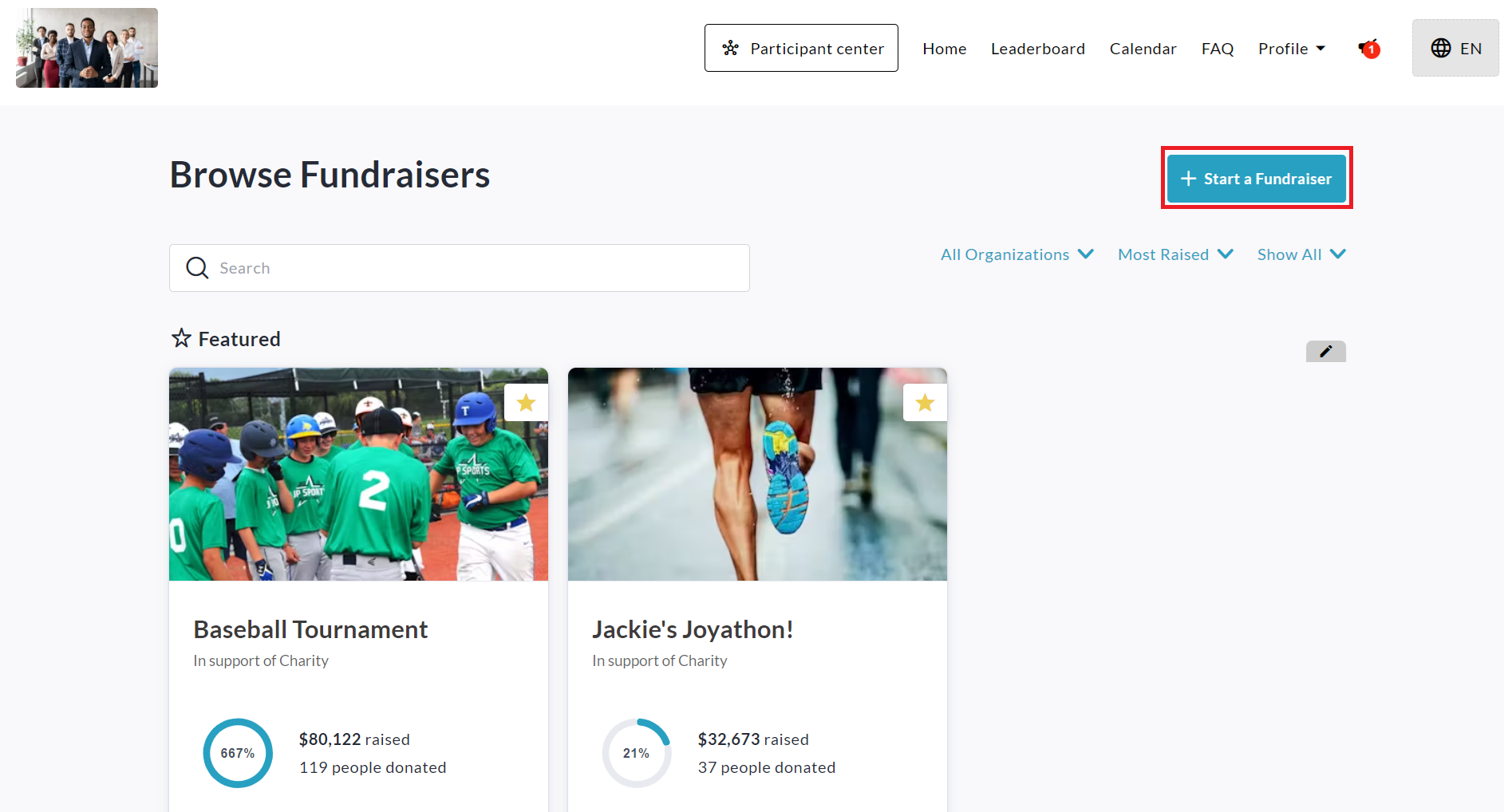
Click the Start A Fundraiser button in the top-right corner of your CrowdChange site.
-
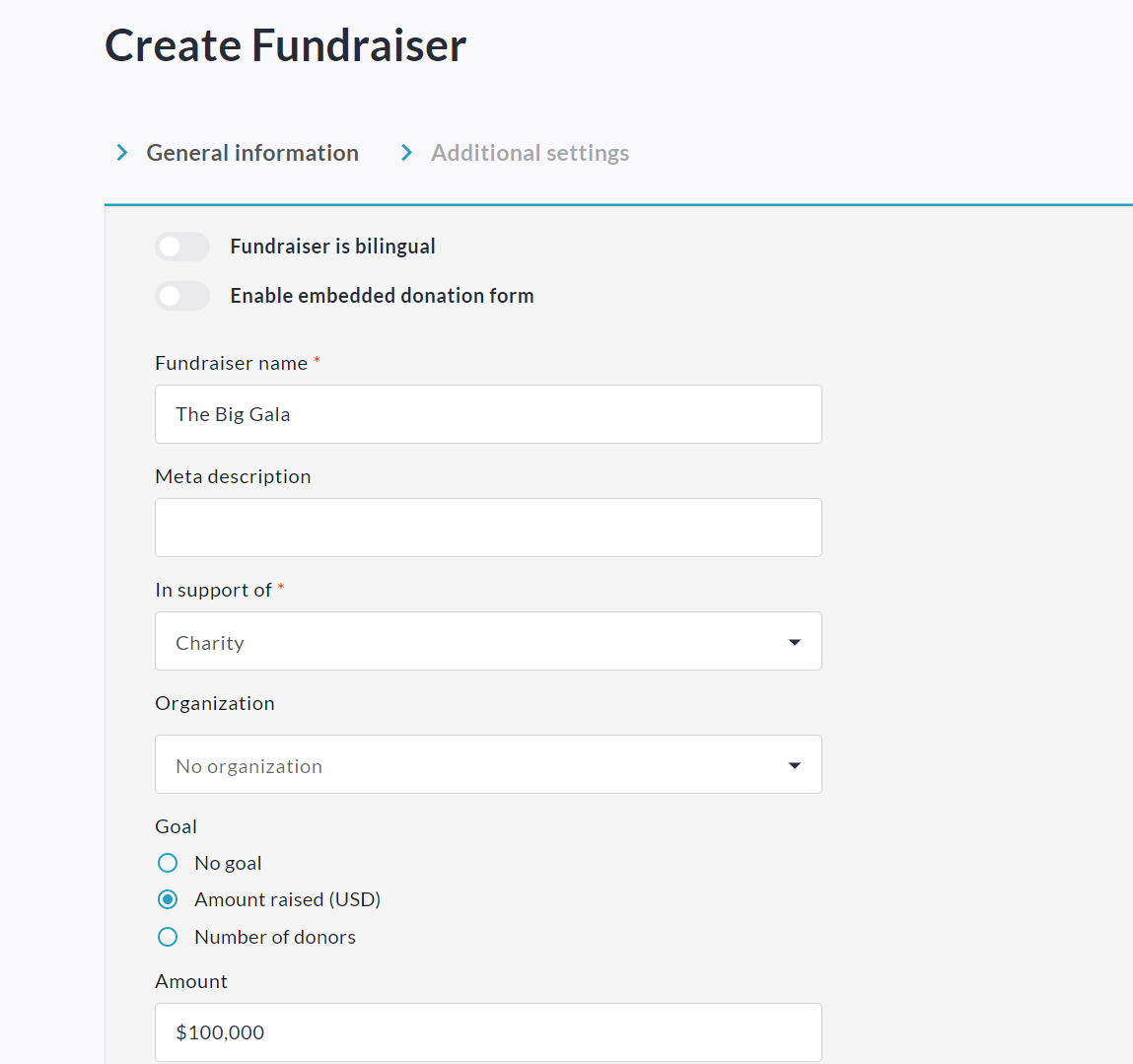
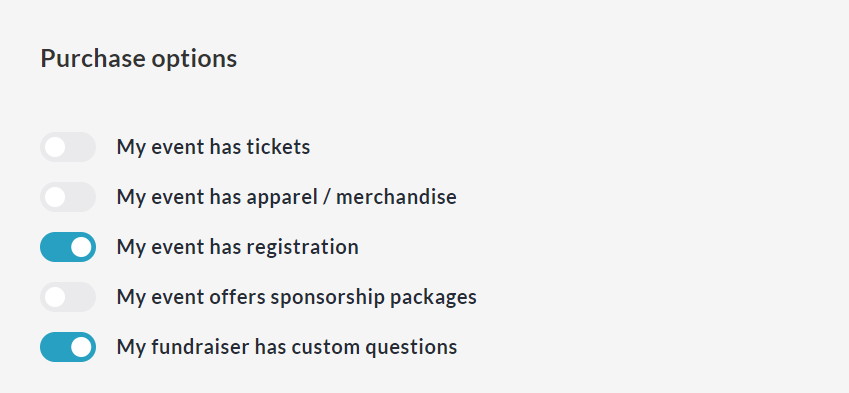
Fill out the General Information page, toggling on any features you'd like to use for your fundraiser under Purchase options. For example:
-
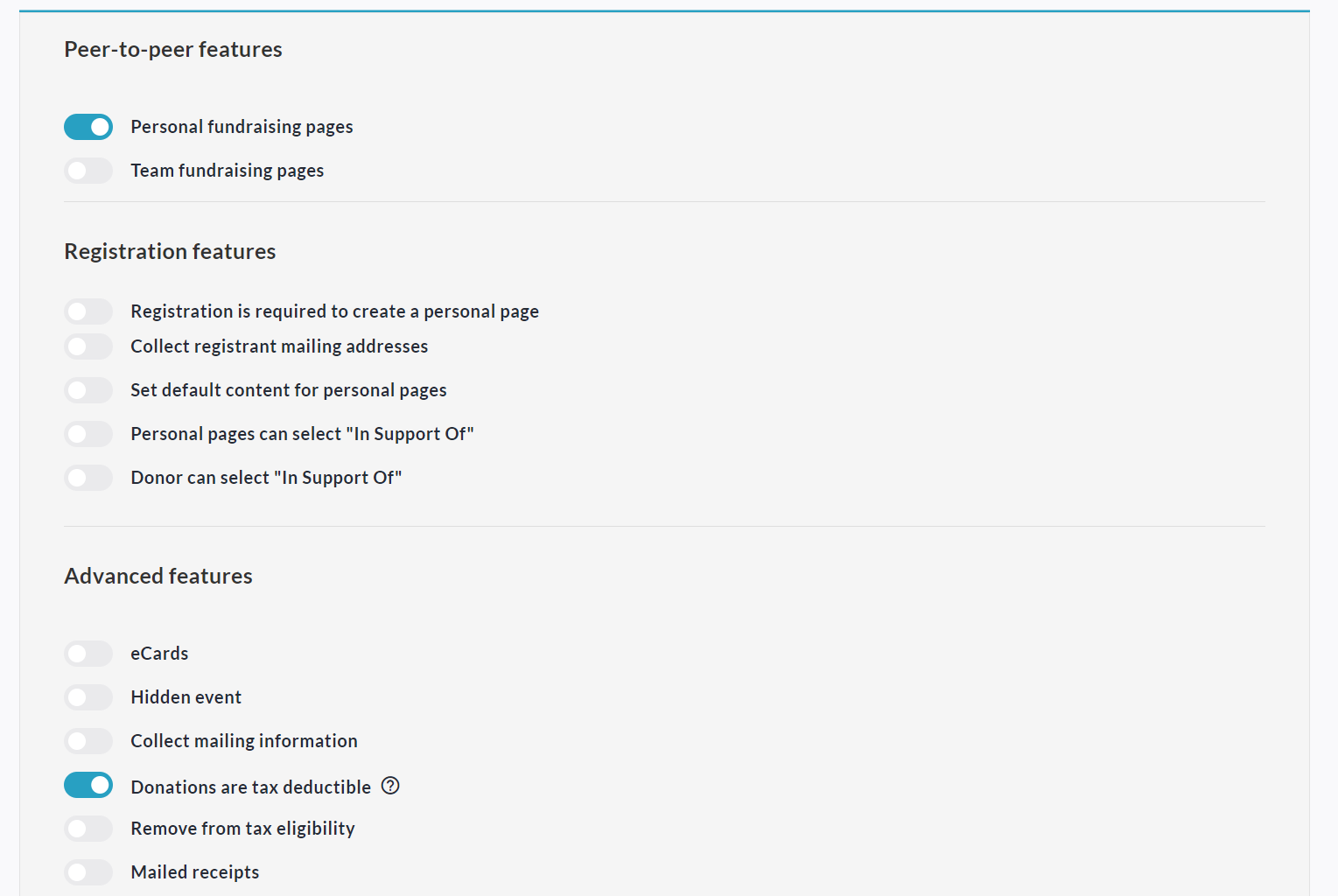
Click Next and further customize your fundraiser on the Additional Settings page, enabling P2P features and more as/if needed.
-
Click Create Fundraiser at the bottom to sign up / log in and publish your fundraiser.
-
Use the Share button to get the word out to your friends & family!
Please see the following related tutorials as well:
-
How Ticketing Works
-
How Merchandise Works
-
How Registration Works
-
How Sponsorship Works (Sponsorship Packages)
-
How to Create a Personal Fundraising Page & Share It
-
How to Create a Team & Invite Members
Detailed Steps:
-
Click the Start A Fundraiser button in the top-right corner of your CrowdChange site.
-
Fill out the General Information page:
-
Fundraiser is bilingual - This allows you to enter all information in both English and French.
-
Fundraiser Name - Set a name for your fundraiser that will be the main heading.
-
In support of - You may be allowed to choose from a list of options, or type your own.
-
Goal - You can turn the goal feature on or off, and set it to either a certain amount raised, or a certain number of donors.
-
Date and time - Turn this on if you want to show a start date / time for your fundraiser.
-
Fundraiser has an end date and time - Turn this on if you want to show an end date / time for your fundraiser.
-
Fundraiser has a location - Turn this on if you want to show the location of your fundraiser.
-
Fundraiser Description - Enter all the information donors & participants will need to know.
-
Cover Image - Upload a banner / header image for your fundraiser.
-
Add a Video - Allows you to paste a video link so that a video will be displayed instead of the Cover Photo on your fundraising page.
-
-
Under Purchase options enable any features you want to use for your fundraiser:
-
My event has tickets - See How Ticketing Works
-
My event has apparel / merchandise - See How Merchandise Works
-
My event has registration - See How Registration Works
-
My event offers sponsorship packages - See How Sponsorships Work
-
My fundraiser has custom questions - See How to Use Custom Questions
-
-
Click Next and enable Peer-to-peer features:
-
Personal fundraising pages - See How to Create Personal Page
-
Team fundraising pages - See How to Create a Team
-
Personal fundraising pages within teams - Allow personal pages to be created under teams.
-
Set default content for personal pages - Set a default description for personal pages.
-
Set default content for team pages - Set a default description for team pages.
-
-
Enable and set up Registration Features if desired and if Multi-Registration is enabled on your site.
-
Advanced Features:
-
Donations are tax deductible - Enable only if you will be issuing tax receipts for this fundraiser.
-
eCards - Turn on and select Tribute Cards if you would like to set up personal pages ‘In honor of’ or ‘In memory of' individuals. Otherwise, select eCards.
-
Collect Mailing Information - Turn on if you want to collect donor mailing information specifically.
-
Allows donors without emails to use their physical address - Let donors donate & register without an email address.
-
Hidden event - Hide fundraiser from the public so only Admins and those with a link can find it.
-
Show list of donors - Turn on if you want a public donor list for your fundraiser.
-
Start accepting funds on date - Turn on if you want the fundraiser to open automatically at a certain date / time. A countdown will be displayed.
-
Stop accepting funds on date - Be sure to turn this on to set a close-off date for your fundraiser.
-
Donation matching - Enable if you would like donations to be matched. You will be able to set up the matching pool and settings through Donation Matching once enabled.
-
-
Click the Create Fundraiser button to sign up or log in - if you haven’t already, otherwise, you are ready to start sharing your fundraiser!
You can hide the ‘Share’ button on your fundraiser if desired using the steps below:
-
From your fundraiser, click Manage Fundraiser in the top-right corner.
-
Click Design your fundraiser.
-
Hover over your banner/hero image and click the Gear icon on the left.
-
On the right sidebar, within the Layout section, click Set up sharing.
-
Disable Show on page and click Save at the bottom.